It’s really strange.G1 can work .4pro not.  Kinhank G1 - #395 by Hassan
Same SOC ,Same wifi chip
I’ve did some work for the box, and give up now. But I’d like to share my work, to help you or someone else might solve this problem.
Here is the information:
1、NG can support AP6275P, at least pcie is link up, the log can be found in Kinhank G1 topic.
2、PCIE reset gpio is 0x35, it’s comfirmed by measuring hardware signal, no other difference found for now.
3、Auraro 4 pro with ne support AP6275P, it means the hardware is supported, even though not using the right PCIE reset GPIO it can bootup. So modify PCIE reset gpio is not the key point.
4、I’ve found PCIE module source code for NG and NE system had lots of differences. This may cause compatibility issue.
For the information above, I think maybe factory BOOT based on NE code did something to PCIE, and then ng coreelec bootup with uncompatible setting, caused pcie peripheral no response. Maybe a global reset for the whole pcie peripheral asserted before loading pcie module is needed? I don’t know.
Here is some other information:
Auraro 4 pro drive 3 leds using IC TCA6507 from TI, this can be seem both in android dtb and on the board.
A module for this IC is needed to make led work.
No other hardware difference found.
Happy New Year, everyone. Thank you for your hard work. I disassembled the internal diagram of 4Pro for your reference. The dmesg log works normally under the Android system.
The working process of WIFI/BT (AP6275PR3)/LED (tca6507) under the Android system. I hope it will be helpful for the repair work.
The AP6275PR3 chip debugging literature is for reference:
photo and dmesg log:
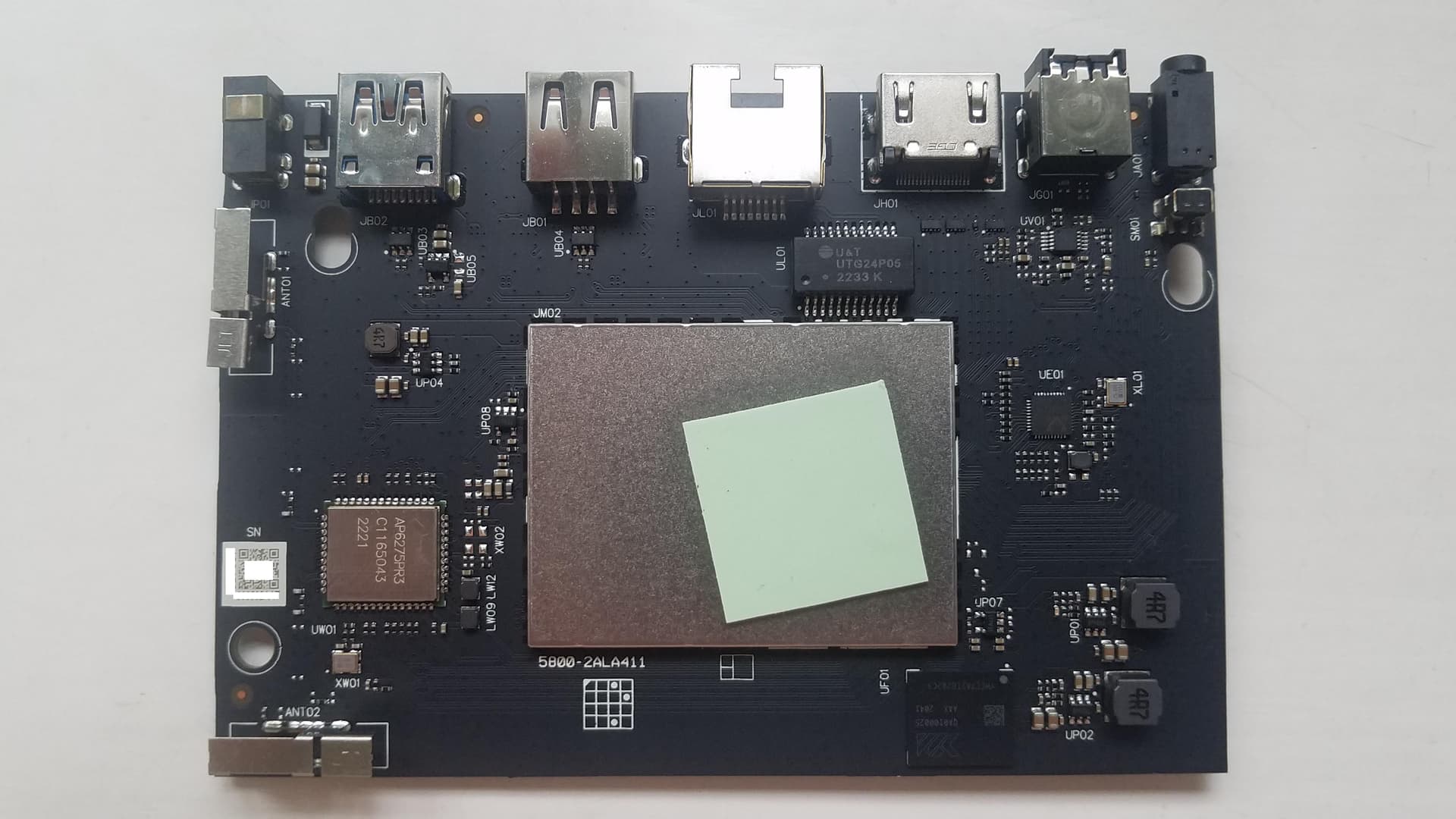
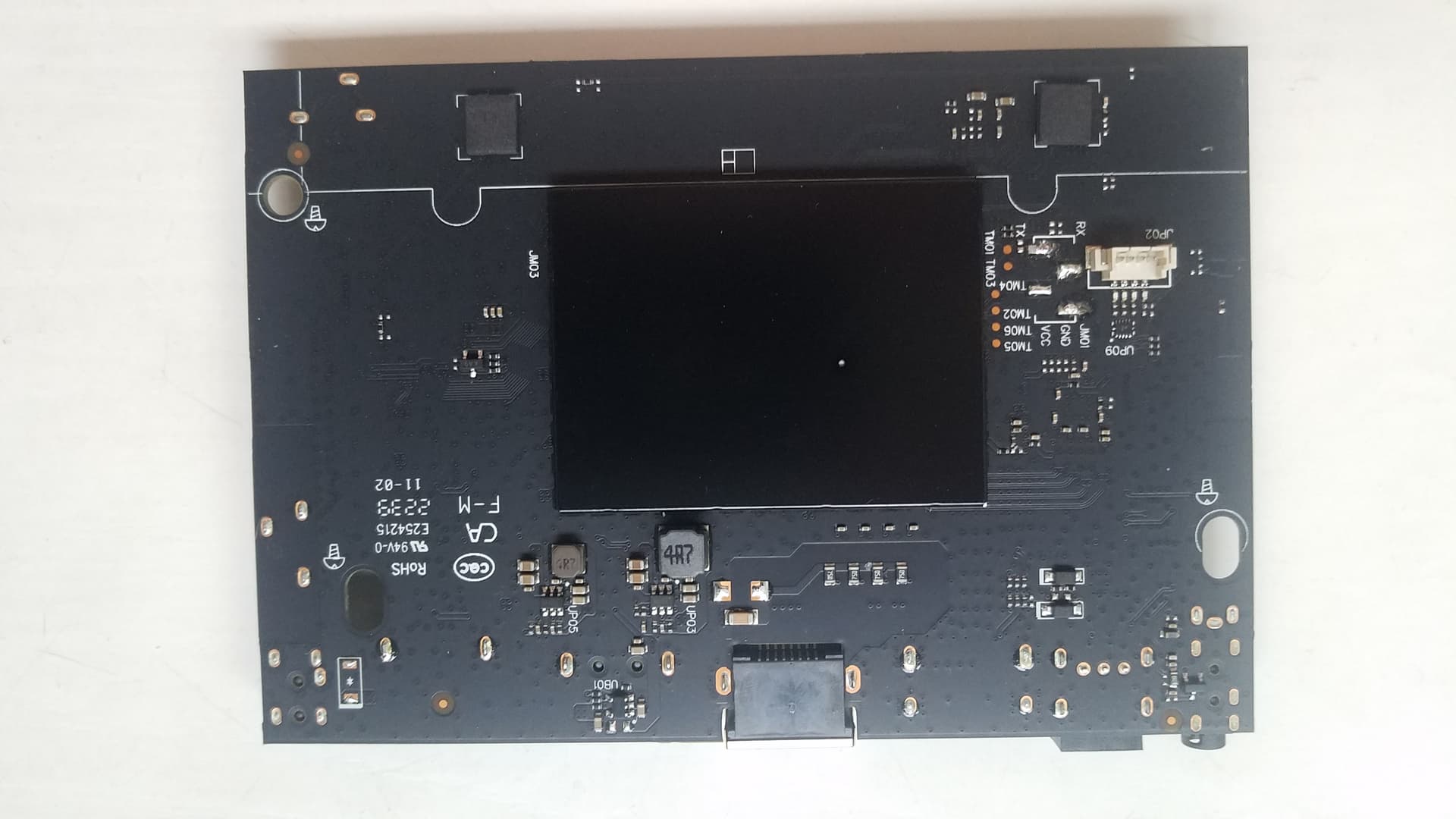
4pro-dmesg.log (368.0 KB)
Is it resolved so far? @Portisch
according to these Pics.Tencent Aurora 4 Pro - #129 by bright357 and Kinhank G1 - #12 by Zuma . We know Tencent aurora 4 pro and Kinhank g1 share the same wifi chip AP6275PR3.extracting dv8910-hungphutho-v1.img,can get 5 dts files,the dts shows pcie status is disable ,not disabled.And the wifi node is special.
sc2-s905x4-ah212-4g.dts (86.9 KB)
sdio@fe088000 {
			compatible = "amlogic,meson-axg-mmc";
			reg = <0x0 0xfe088000 0x0 0x800 0x0 0xfe000164 0x0 0x4 0x0 0xfe00400c 0x0 0x4>;
			interrupts = <0x0 0xb0 0x4>;
			status = "okay";
			clocks = <0x8 0x110 0x8 0xd9 0x8 0xdb 0x15 0x8 0x5>;
			clock-names = "core", "mux0", "mux1", "clkin0", "clkin1";
			card_type = <0x3>;
			mmc_debug_flag;
			cap-sdio-irq;
			keep-power-in-suspend;
			pinctrl-0 = <0x37>;
			pinctrl-1 = <0x38>;
			pinctrl-names = "default", "clk-gate";
			#address-cells = <0x1>;
			#size-cells = <0x0>;
			bus-width = <0x4>;
			cap-sd-highspeed;
			sd-uhs-sdr50;
			sd-uhs-sdr104;
			max-frequency = <0xbebc200>;
			non-removable;
			disable-wp;

			wifi@1 {
				reg = <0x1>;
				compatible = "brcm,bcm4329-fmac";
			};
		};
Can the AP6275P driver drive the 21NG version with a PCIe interface?
No, not compatible.
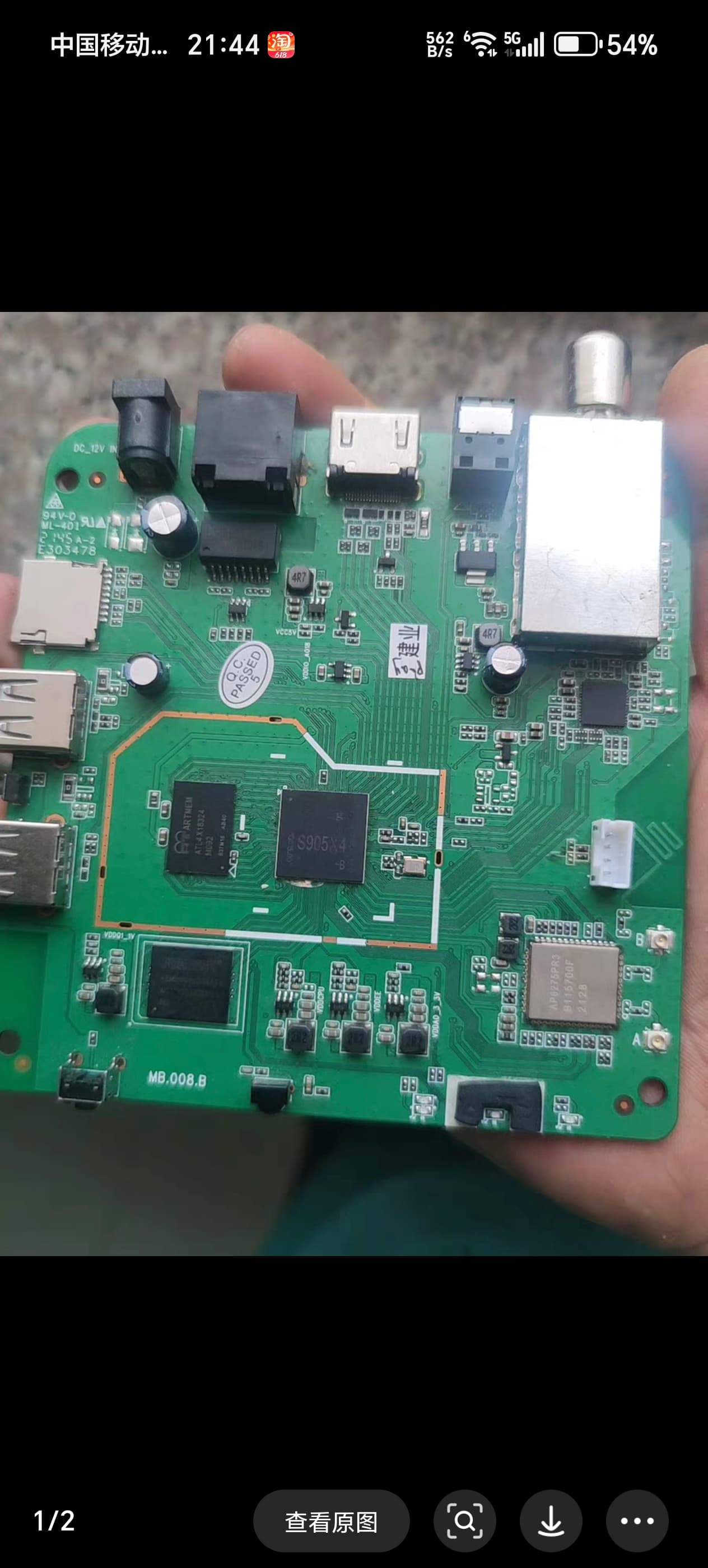
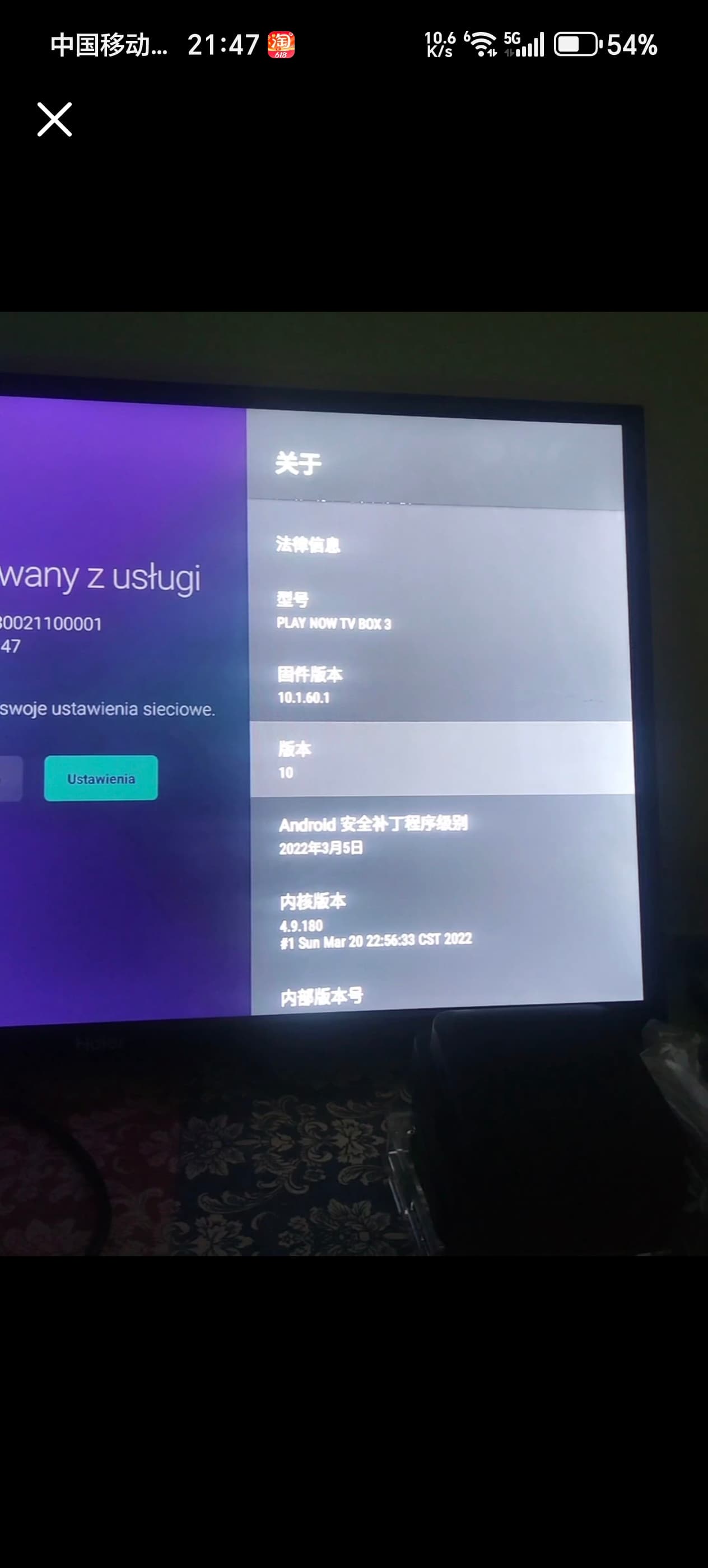
Hello everyone, I flashed the latest nightly version of NG on Tencent Aurora 4 Pro. I found that HDMI CEC is not working.
After specifying the logical address as playback through the command cec-client -t p, I can receive the command of the TV remote control. But changing the device type in the system’s cec adapter settings has no effect.
I have tried to change the libcec version to 7.0.0 on CE-NG and compile it, but it still doesn’t work.
Is this a known issue? Or how can I solve this problem myself?
Finally I solved the problem! Through the log output by dmesg, I found that
hdmitx=cec7f
was printed, so I entered the command
fw_setenv cecconfig cec3f
and reboot. The TV remote control can finally control Kodi!
Adjust CEC settings in Kodi input! Otherwise it will be overwritten!
AP6275PR3 can be installed on Linux 4.9 but requires manual driver porting. Prioritize using the driver package provided by the manufacturer, focusing on resolving firmware deployment, PCIe identification, and protocol support issues.
Extract ap6275pr3 based on the kernel version from the URL: https://mirrors.tuna.tsinghua.edu.cn/ubuntu/pool/main/l/linux-firmware/
After downloading the firmware, copy it to the target path and update the kernel module:
sudo cp brcmfmac43752-pcie.bin /lib/firmware/brcm/
sudo modprobe -r brcmfmac && sudo modprobe brcmfmac
I hope to solve the problem of WiFi and Bluetooth driver adaptation for the CoreELEC-NG system.
The brcmfmac43752-pcie.bin is the core firmware for the BCM43752 chip and also serves as the ap675pr3 driver file, directly affecting the availability and performance of Wi-Fi 6 and Bluetooth 5.3 functions. During development, ensure its version, path, and permissions are correct. When debugging, prioritize checking firmware loading issues through dmesg logs. For adapting to older kernels (such as 4.9), it is recommended to contact the manufacturer for a customized driver package.
Below are the detailed installation steps for the brcmfmac43752-pcie.bin driver on Linux Kernel 4.9, based on hardware compatibility and kernel requirements. Follow these procedures carefully:
 1. Prerequisites Preparation
-
Install essential tools:
bash
sudo apt update
sudo apt install build-essential linux-headers-$(uname -r) # For Debian/Ubuntu -
Verify kernel configuration:
bash
zcat /proc/config.gz | grep -E “CONFIG_PCI|CONFIG_BT|CONFIG_CFG80211” # Ensure outputs show “=y”
 2. Obtain Driver Resources
- Acquire vendor driver package:
Contact Ampak Technology (or distributor) for the BCM43752 Linux driver package compatible with kernel 4.9.- If unavailable, use community alternatives (e.g.,
rtl88x2buGitHub repo) and adapt for BCM43752 .
- If unavailable, use community alternatives (e.g.,
 3. Driver Compilation & Installation
Step 3.1: Setup Driver Source
bash
sudo mkdir -p /usr/src/ap6275pr3-driver
tar -xvf <driver_package>.tar.gz -C /usr/src/ap6275pr3-driver/
cd /usr/src/ap6275pr3-driver
Step 3.2: Modify Makefile
Edit Makefile to specify kernel path:
makefile
KERNEL_DIR ?= /lib/modules/$(shell uname -r)/build # Correct path
Step 3.3: Compile & Install Module
bash
make clean
make -j$(nproc) # Multi-threaded compilation
sudo make install # Installs .ko to /lib/modules/$(uname -r)/kernel/drivers/net/wireless/
sudo depmod -a # Update module dependencies
Step 3.4: Deploy Firmware
bash
sudo cp brcmfmac43752-pcie.bin /lib/firmware/brcm/ # Critical for hardware initialization
sudo chmod 644 /lib/firmware/brcm/brcmfmac43752-pcie.bin
 4. Load Driver & Verify
bash
sudo modprobe brcmfmac # Load Broadcom core module
sudo insmod ./ap6275pr3.ko # Insert custom module
dmesg | grep -i “brcm” # Check for errors like “firmware load failed”
iwconfig wlan0 # Verify WiFi interface existence
hciconfig -a # Confirm Bluetooth detection
 5. Troubleshooting Common Issues
-
Firmware not loading:
bashEnsure exact filename match in /lib/firmware/brcm/
sudo ln -s brcmfmac43752-pcie.bin brcm/brcmfmac43752-pcie.<chip_revision>.bin # Fix symlink if needed
-
PCIe device unrecognized:
Enable PCIe hotplug in BIOS/UEFI . -
Signal interference:
Validate hardware antenna separation (WiFi/Bluetooth independent) .
 6. Enable Autoload at Boot
bash
echo “ap6275pr3” | sudo tee /etc/modules-load.d/ap6275pr3.conf
sudo update-initramfs -u # Rebuild initramfs
 Verification Commands
bash
lsmod | grep ap6275pr3 # Confirm driver loaded
lspci -v | grep -i Broadcom # Check PCIe device recognition
Note: Kernel 4.9 lacks native WiFi 6 support. If stability issues persist, upgrade to kernel ≥4.19 (recommended) .
For full hardware schematics or advanced debugging, consult Ampak’s AP62xx Design Guide .
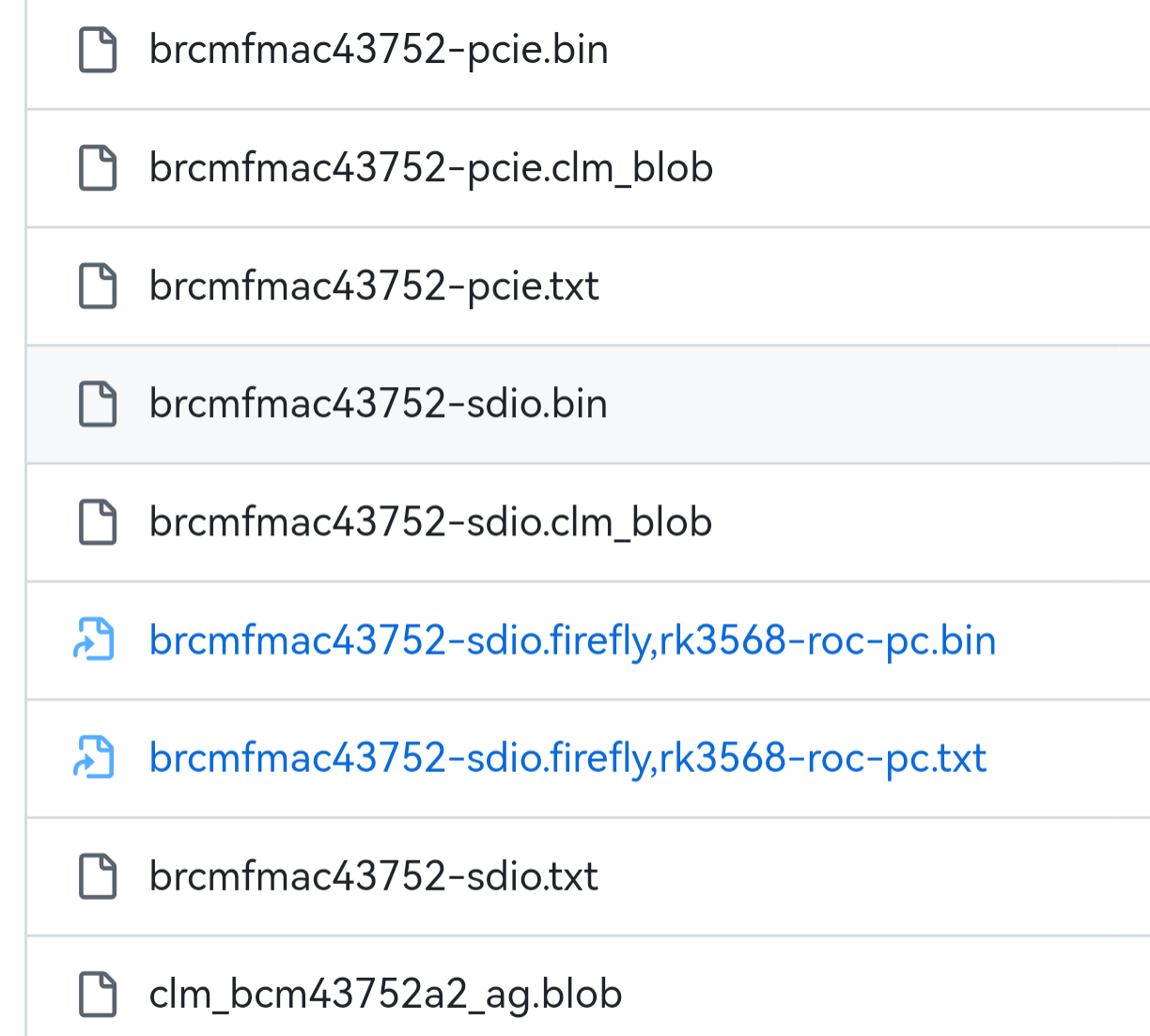
The driver installation script is linked as follows:
https://github.com/coolsnowwolf/lede/commit/230b94f012f769a1765835d4838514ba6b903b8b.diff
ap6275p-extract-from-play-now-tvbox-android10.zip (1.1 MB)
We have sent you the AP6275PR3 driver for the 4.9 kernel corresponding to Tencent Aurora 4 Pro. Please add it, hoping to enable Wi-Fi and Bluetooth.